Your inbox is overflowing. Your notepad is full of half-forgotten to-do’s. And somewhere in your head floats that one important deadline you don’t want to forget. Sound familiar? Then it’s time for a decent task list app. And if you’re already working with Outlook, Microsoft To Do might be the solution that ties all those loose ends together.
Microsoft To Do is free, works on all your devices, and talks seamlessly with your Outlook calendar. But is it actually good enough to get your chaotic task list under control? I dove in.
Microsoft To Do: the company
Microsoft To Do didn’t just appear out of thin air. It’s the successor to Wunderlist, a beloved task list app that Microsoft acquired in 2015. In 2017, Microsoft launched To Do as the new flagship, and in 2020, Wunderlist was officially phased out.
The app is built by Microsoft itself and is now firmly anchored in the Microsoft 365 ecosystem. You’ll find To Do in Outlook, Teams, and even in your Windows taskbar. It’s clear that Microsoft takes the app seriously as part of their productivity suite.
What stands out: Microsoft To Do remains completely free for personal use. You only need a Microsoft account, and you probably already have one if you use Outlook, OneDrive, or Xbox. For business use, To Do is included with Microsoft 365 subscriptions, at no extra cost.
Who is Microsoft To Do for?
Microsoft To Do is perfect if you’re already in the Microsoft universe. Do you use Outlook for your email? Teams for meetings? Then To Do connects seamlessly to that. Your flagged emails automatically appear as tasks, and you can share tasks with colleagues you already have in Teams.
The app is also ideal for people who don’t want complicated project management tools. To Do keeps it simple: lists, tasks, subtasks. Done. No Gantt charts, no burndown graphs, no mandatory course to understand the interface.
But To Do is less suitable if you’re a power user who wants to organize everything down to the last detail. Missing advanced filters, tags, priorities, and natural language input? Then you’ll probably quickly run into limitations.
Also, if you mainly work on Linux, you’re out of luck. There’s no official Linux app, although you can use the web version.
What can Microsoft To Do do?
Microsoft To Do is packed with features that make your daily planning a lot easier. These are the most important:
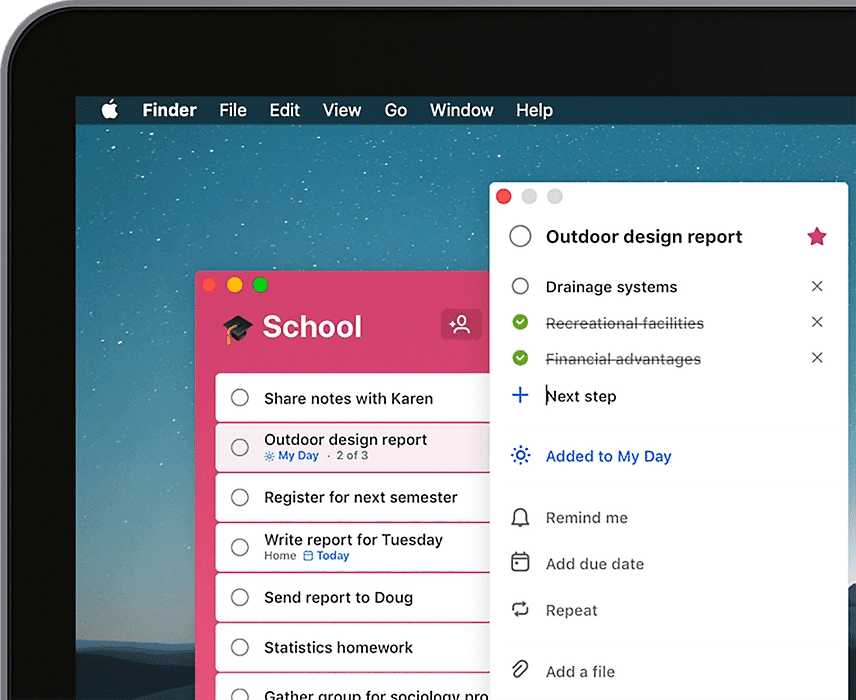
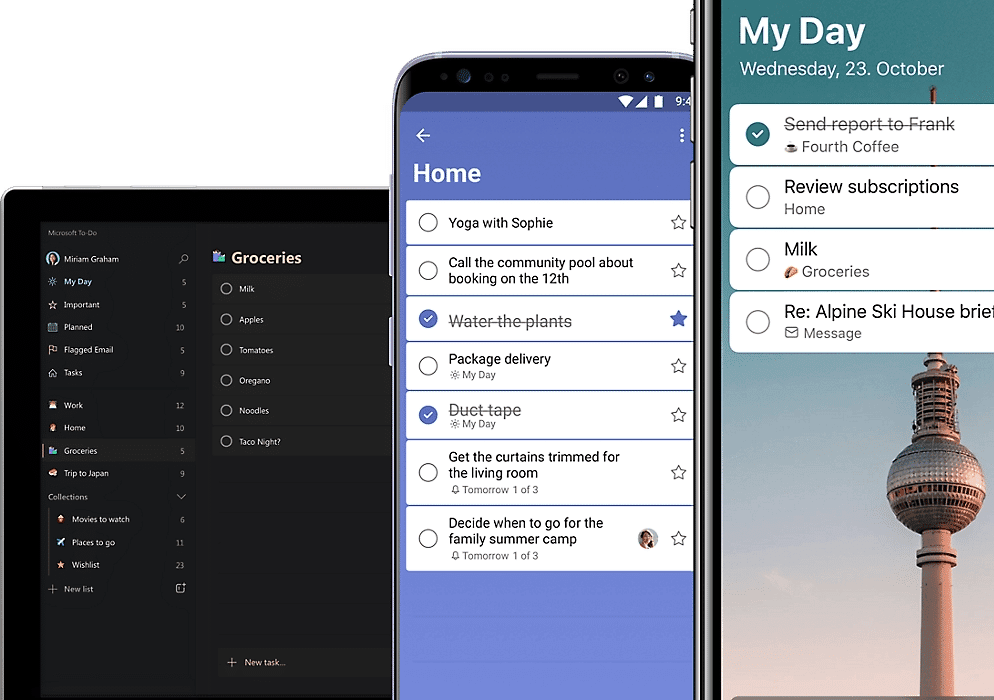
- My Day – This is the crown jewel. Every morning you get a clean slate with suggestions for tasks that deserve attention today. You manually drag in what you want to tackle, keeping your focus. Not an overwhelming list of 47 tasks, but a manageable daily schedule.
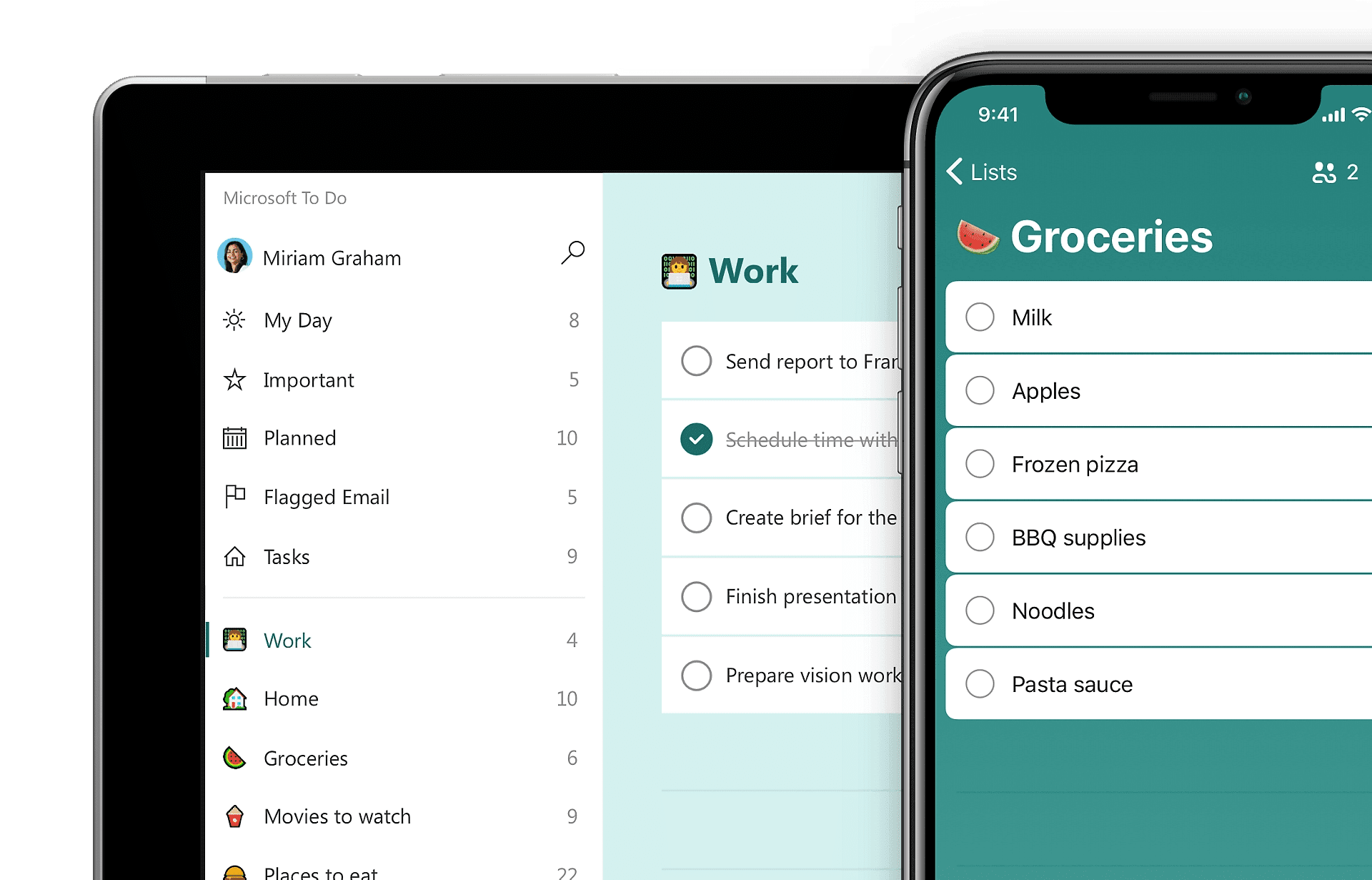
- Share lists – Create a shopping list and share it with your roommates. Or a project list with colleagues. Anyone with a Microsoft account can join in, add tasks and check them off. Ideal for families and small teams.
- Outlook integration – Flag an email in Outlook? Then it automatically appears in To Do. It works the other way too: tasks you create in To Do, you’ll see back in Outlook. Everything stays synchronized without you having to do anything.
- Reminders and deadlines – Set a due date and To Do will send you a notification. You can also create recurring tasks for things that come back every week or month, like taking out the trash or preparing your tax return.
- Subtasks (steps) – Big task? Break it down into smaller steps. You can create a checklist per task with substeps that you check off one by one. Useful for projects with multiple components.
- Notes and attachments – Add a note to a task for extra context. Or drag a file onto it (up to 25 MB). This way you have all the information together without having to search through your mailbox or OneDrive.
- Themes and dark mode – Choose from different color themes or switch to dark mode. Not earth-shattering, but nice when you’re checking your task list in the evening without blinding your eyes.
- Cross-platform – Create a task on your iPhone while waiting for the bus, and see it appear on your Windows laptop when you get home. To Do syncs between iOS, Android, Windows, macOS and the web version.
What stands out is that Microsoft To Do focuses on simplicity. There are no fancy Kanban boards or time tracking. It’s a task list, and it does exactly what you expect.
What does Microsoft To Do cost?
Here’s the good news: Microsoft To Do is completely free. No limited trial period, no premium subscription they’re trying to sell you, no “upgrade for more features”. Everything you just read, you get without paying.
You only need a Microsoft account. Don’t have one? You can create one for free. Using Microsoft 365 for work? Then To Do is automatically included, at no extra cost.
This is a major difference from competitors like Todoist, where the free version is limited to 5 projects and you have to pay for advanced features. Or TickTick, where you don’t get subtasks without premium. Microsoft To Do gives you everything, free.
The downside? Because it’s free, Microsoft doesn’t directly profit from it. That means new features are slow to arrive. Wunderlist users have been waiting for years for features that were promised during the transition. Development just doesn’t move as fast as with apps that have a paid subscription behind them.
What should you watch out for?
Microsoft To Do is free and convenient, but not perfect. These are the main pain points users encounter:
The subtasks aren’t really true subtasks. They’re called “steps” and are simply a checklist within a task. You can’t attach a separate deadline to them, add a note, or set a reminder. For simple things it works fine, but complex projects with dependencies? Forget it.
Synchronization sometimes falters. You create a task on your phone, but it takes a while before it appears on your laptop. Or vice versa. It usually resolves itself, but it’s frustrating when you want to quickly check something and it’s not there.
There’s no natural language input. With Todoist you type “tomorrow at 3:00 PM buy groceries” and the app understands exactly what you mean. With To Do you have to manually set the date and time through dropdown menus. That feels a bit outdated in 2024.
The filters and smart lists are limited. You can sort by due date or importance, but you can’t create advanced searches like “all tasks with tag X that expire this week and are assigned to person Y”. Power users miss that flexibility.
And then there’s the pace of development. Microsoft To Do sometimes feels like an app that’s hobbling along in the background while Microsoft focuses on Teams and Outlook. New features arrive slowly, and the interface looks a bit dated compared to modern competitors.
Finally: you need to have a Microsoft account. That’s not a problem for many people, but if you’re consciously keeping your distance from big tech companies, you’re stuck with this. There’s no option to use To Do without sharing your data with Microsoft.
What do others think?
Opinions about Microsoft To Do are predominantly positive, especially among people who are already in the Microsoft ecosystem. On YouTube, Tool Finder praises the app as the best free option, especially thanks to the ‘My Day’ feature that helps you focus without getting overwhelmed. They do warn that power users will be disappointed by the lack of advanced features.
Simon Sez IT emphasizes in their comprehensive tutorial the strong integration with Microsoft 365 as the biggest advantage for business use. If you’re already working with Outlook and Teams, To Do is a logical addition that seamlessly connects.
What users appreciate most: the ‘My Day’ feature receives praise everywhere. It really helps structure your day without getting distracted by that huge list of “someday maybe” tasks. Also the fact that everything is free without a premium subscription is constantly mentioned as a major advantage.
The ability to see flagged emails from Outlook directly as a task is also a frequently mentioned favorite. And the clean, calm interface without distraction gets appreciation from people who are tired of cluttered dashboards.
But the complaints are also consistent. The lack of “true” subtasks with their own deadlines and notes frustrates many users. The steps feature feels like a half solution. Synchronization issues are regularly mentioned, with tasks not immediately appearing on mobile or desktop.
Many users find the app feels outdated compared to modern tools like Todoist or TickTick. The limited options for smart lists and filters are also frequently mentioned as missing features.
On Reddit you see a mixed picture. Some people swear by it and use it daily without problems. Others have switched to alternatives because To Do was too basic for their workflow. The consensus: it’s a solid free option, but not the most advanced task list app out there.
Microsoft To Do alternatives
Doesn’t Microsoft To Do quite fit what you’re looking for? These are the best alternatives:
- Todoist – Choose Todoist if you need advanced task input. You type “tomorrow at 2:00 PM call Jan #work !priority1” and everything is automatically recognized and set. The filters and labels are much more powerful than To Do. Downside: the free version is limited to 5 projects and 5 active collaborators. For all features you pay € 4 per month.
- Google Tasks – Do you mainly work in Gmail and Google Calendar? Then Google Tasks is the logical choice. It’s simpler than To Do, but is deeply integrated into the Google ecosystem. Tasks you create from emails automatically appear in your calendar. Also completely free, but with fewer features than To Do.
- TickTick – This is the all-in-one option. In addition to tasks you get a built-in Pomodoro timer, habit tracker and calendar view. Perfect if you want to track habits in addition to tasks or work with the Pomodoro technique. The free version is fairly complete, but for the best features you pay € 2,79 per month.
Each of these alternatives has its own strengths. Todoist wins on power and flexibility, Google Tasks on simplicity and Google integration, and TickTick on versatility with additional productivity tools.
Frequently asked questions
Is Microsoft To Do really completely free?
Yes, Microsoft To Do is completely free for personal use. You only need a Microsoft account. For business use, it’s included with Microsoft 365 subscriptions, with no additional costs on top of your existing subscription.
Can I sync my tasks with Outlook?
Yes, Microsoft To Do automatically syncs with Outlook Tasks. If you use the same Microsoft account, you’ll see your tasks in both applications. Flagged emails in Outlook also automatically appear as tasks in To Do.
Can I share lists with people who don’t have a Microsoft account?
No, to collaborate on shared lists in Microsoft To Do, all users must have a Microsoft account and be logged in. You cannot share lists with people who don’t want to create an account.
Conclusion
Microsoft To Do is a solid, free task list app that does exactly what it promises. No fuss, no hidden costs, just a reliable way to keep track of your tasks. The ‘My Day’ feature is truly worth its weight in gold if you struggle with focus, and the Outlook integration makes it a no-brainer if you’re already working with Microsoft 365.
But it’s not a perfect app. The subtasks are limited, syncing sometimes falters, and power users will miss the advanced features that Todoist or TickTick do have. Development is slow, and sometimes it feels like Microsoft has forgotten the app a little.
Still, To Do is more than good enough for many people. If you want a simple, reliable task list that works seamlessly with your Outlook email and is free, then this is an excellent choice. Just try it out. It costs you nothing, and within five minutes you’ll know if it’s right for you.