
You know that feeling when you install yet another app to organize your work? And then you end up jumping back and forth between five different tools? I’ve used Tana intensively for three months to see if it’s really that ‘all-in-one’ solution it claims to be. Spoiler: it’s impressive, but not for everyone.
Tana: the company
Tana was founded by Olav Sindre Kringlebotn and his team, who were previously behind Workflowy – one of the first outline tools that really became popular. They brought that experience with them, but wanted to go further than just a simple outliner.
The idea behind Tana? A tool that adapts to how you think, instead of the other way around. No pages you have to create. No strict database structures you have to struggle through. Just type, tag, and let it grow.
What really sets Tana apart is their focus on ‘supertags’ – a kind of hybrid between tags and databases. Sounds abstract? It kind of is. But once you get it, it’s actually brilliant. The company is still in a fairly early stage, but has already built up a pretty loyal community of power users.
Who is Tana actually for?
Let me be honest: Tana is not for beginners. If you’re just starting out with digital organizing, you’re going to get lost. Really.
This tool is made for people who have already gone through the Notion phase. For those who find Obsidian too basic. For consultants who want to link projects, clients, and notes together without having to manually structure everything. For researchers who want to build a knowledge graph without having to get an IT degree.
Think of: product managers who want to connect features, bugs, and meetings. Writers who want to cross-reference characters, plotlines, and research notes. Students who want to have literature, lectures, and essay ideas in one system.
Do NOT choose Tana if you just want a to-do list. Or if you’re looking for something that “just works” without a manual. Or if your team isn’t technically savvy – because explaining to your colleagues how this works, that’ll be a project in itself.
Tana features
Okay, now for the interesting part. What can you actually do with it?
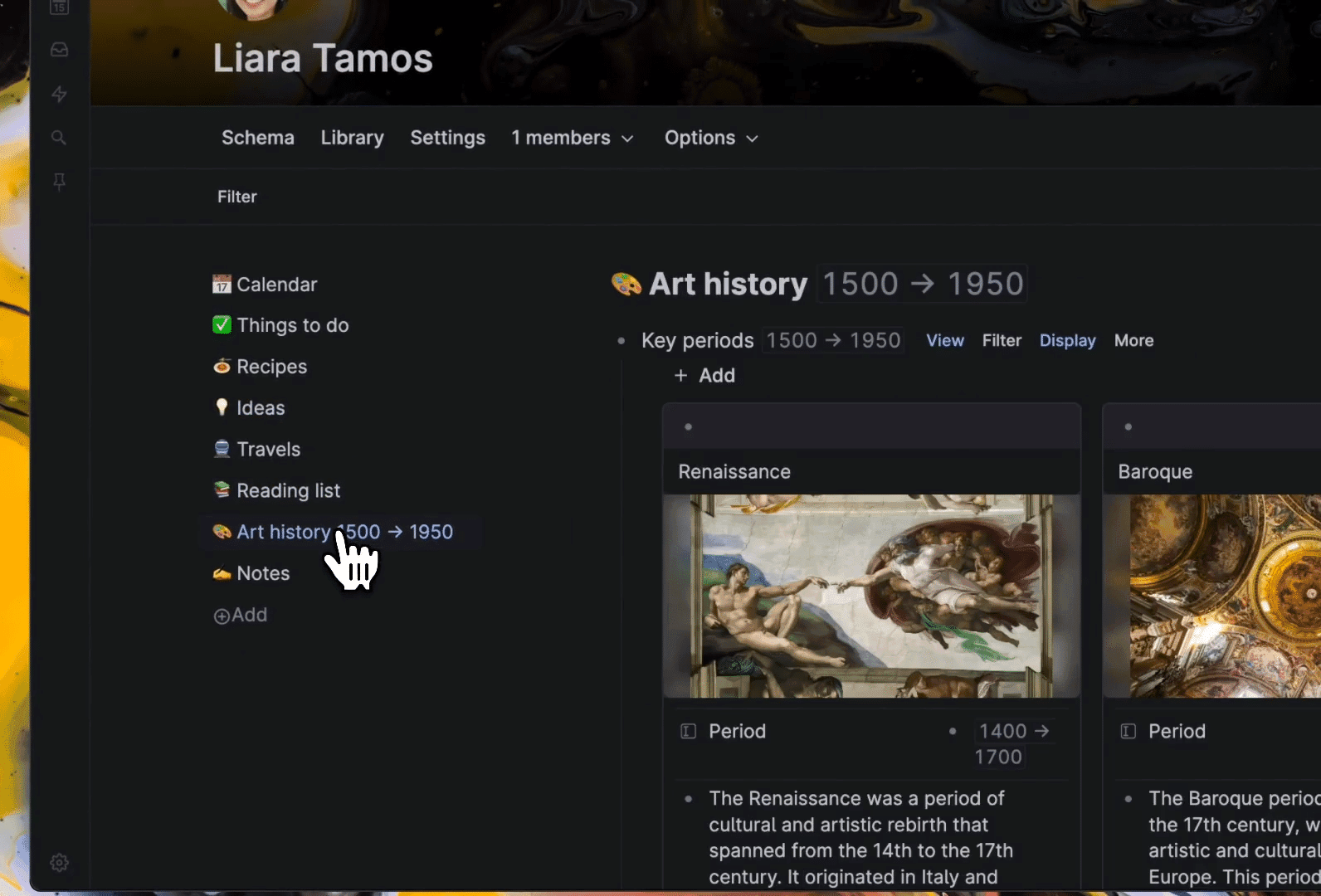
- Supertags – This is the heart of Tana. Instead of just adding a tag, you turn each note into a structured object. If you tag something as “Book”, you can automatically add fields like author, publication date, and rating. It feels like a database, but without the rigid structure. You can literally transform any note into a database item.
- Knowledge Graph – All links between your notes are displayed visually. Click on a concept and you immediately see which other notes reference it. It’s bidirectional, so if you link A to B, B automatically sees that too. Useful if you want to discover patterns in your thinking or research.
- AI Meeting Agent – Join a meeting, and Tana transcribes and summarizes. It automatically creates action items and links them to relevant projects. I use this for client conversations and it saves me at least half an hour of work per meeting. The transcription is surprisingly accurate, even with Dutch mixed in.
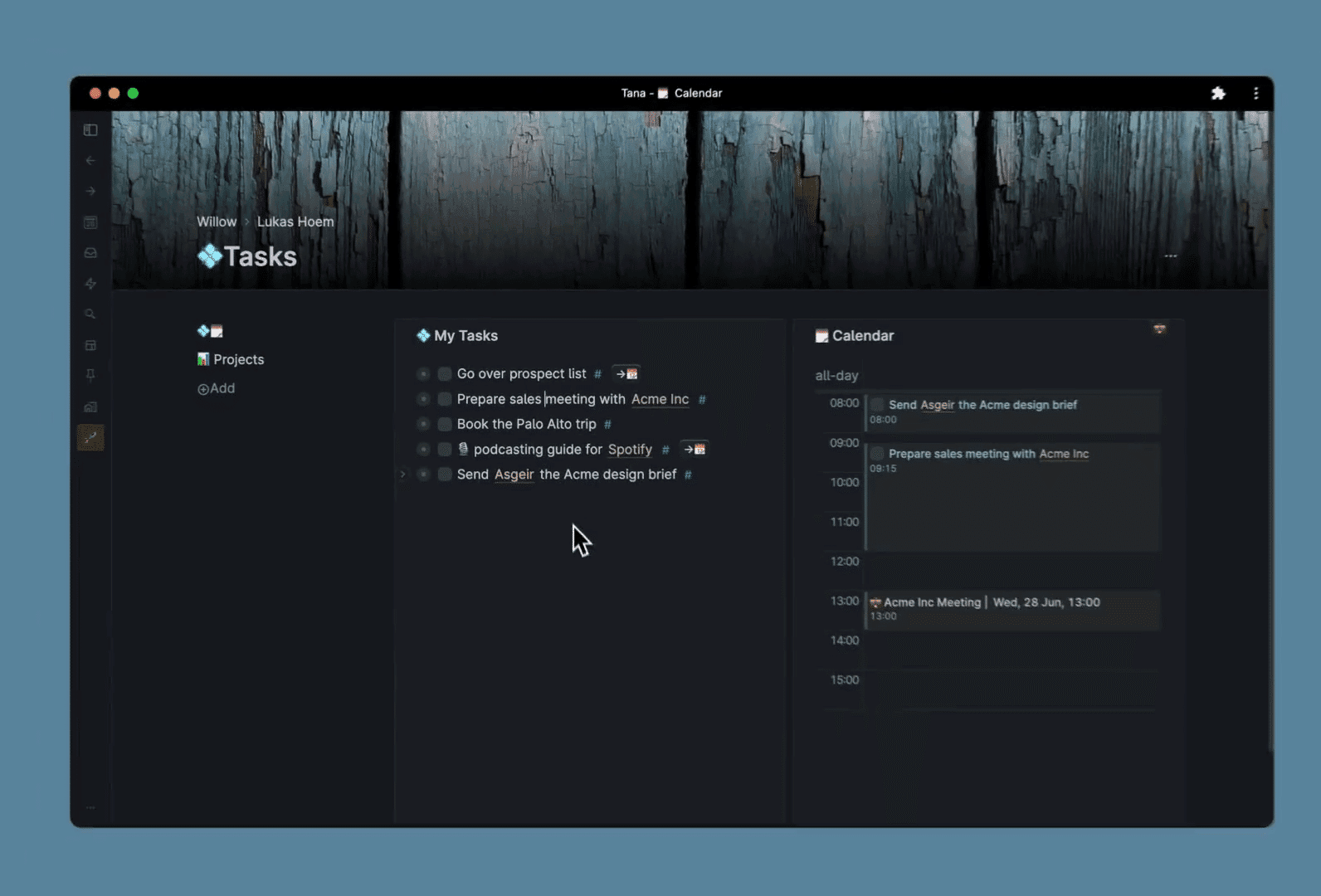
- Live Search – These are dynamic views that automatically update. Create a dashboard with “all tasks for this week” or “all notes about client X” and it keeps updating itself while you work. No manual drag-and-drop needed.
- Daily Notes – Every day a fresh page where you can quickly jot things down. It sounds simple, but the power lies in how easily you can tag and structure things from your daily note. It becomes your central inbox.
- Tana Capture – The mobile app is deliberately kept simple. You can quickly add a note, photo, or voice memo that then lands in your inbox. Nothing more, nothing less. For the real work, you go to desktop.
Those supertags deserve some extra attention. Because this is where Tana is really different from Notion or Obsidian. In Notion, you create a database and add items to it. In Tana, you just tag a bullet point, and that bullet point IS now a database item. It sounds like a subtle difference, but in practice it’s enormously liberating.
Example: you write in your daily note “Meeting with Jan about new project”. You tag “Jan” as a person, and “new project” as a project. Automatically, that note now appears in Jan’s profile and in the project overview. No extra steps. No copy-pasting. It grows organically with your work.
Tana pricing
Here’s where it gets interesting. Tana has a free plan, but it’s quite limited. You get 500 AI credits per month (enough for about 5-10 meetings), maximum 3 additional workspaces, no API access, and no Google Calendar sync.
For serious use, you need Plus or Pro. Plus costs $ 10 per month (or $ 8 per month if you pay annually, so $ 96 per year). Pro costs $ 18 per month, or $ 14 per month with an annual subscription of $ 168.
There’s also a 14-day trial, so you can try it out before you pay.
Is it worth it? That depends on what you’re replacing with it. If Tana replaces your Notion ($ 10), Obsidian Sync ($ 10) and a transcription tool ($ 15), then $ 14 per month is actually a bargain. But if you’re just looking for a note-taking app, it’s expensive. Really expensive.
For Dutch users, the price tag feels extra steep because of the dollar exchange rate. Expect around € 13-17 per month depending on exchange rates. That’s more than Netflix. For a note-taking app.
What should you watch out for?
Okay, now for the things that frustrate me. Because they’re definitely there.
First: that learning curve. I literally had to watch hours of YouTube tutorials before I understood how supertags really work. The first week I constantly thought “why is this so complicated?” It’s not intuitive. You have to invest time in it.
The mobile app is disappointingly basic. You can only capture things, not really work. Want to quickly develop a note or check a dashboard on the go? Forget it. You’re stuck with your laptop. In 2025, that just feels outdated.
Then the price. Yes, I already mentioned it, but it remains a pain point. $ 18 per month for Pro is just a lot of money. Especially if you’re just starting out and don’t know yet if you’re going to use it. The free version is too limited to really test, so you’re stuck with that two-week trial.
Minor annoyance: offline mode only works for personal workspaces. Working together with a team? Then you need to be online. On a train without wifi? Too bad.
And while Tana says you can export data to JSON and Markdown, it’s not as plug-and-play as you’d hope. The export is technical, not user-friendly. If you ever want to switch to another tool, that becomes a project.
What do others think?
The community is divided, but enthusiastic. Power users love it. They call the supertags “revolutionary” and feel that the AI integration “feels natural.” Many people say that Tana has replaced both Notion and Obsidian for them.
But there’s also a lot of criticism. The mobile app is constantly mentioned as the biggest downside. People find it frustrating that they can do so little on the go. The learning curve also keeps coming up – “requires hours of study” is a recurring complaint.
What stands out: almost no one is neutral about Tana. You either find it amazing, or way too complex. There’s little in between. That actually says enough about who this tool is for.
Tana alternatives
Doesn’t this quite fit? These tools are also worth considering:
- Notion – Has a more traditional database and wiki structure. Choose this if you prefer working with pages and blocks rather than an infinite outliner. Notion is more user-friendly and has better templates, but lacks the flexibility of supertags.
- Obsidian – Stores everything locally in Markdown files. Choose this if you want complete control over your data and prefer to work offline. It’s cheaper (or even free), but lacks the advanced database features and AI integration.
- Roam Research – Simpler and purely focused on network thinking with bidirectional links. Choose this if you don’t need the complex database features of Tana and purely want to link between notes. It’s less overwhelming, but also less powerful.
Frequently asked questions
Does Tana have an offline mode?
Yes, but with a caveat. The desktop app works completely offline for your personal workspaces. Everything you do offline syncs as soon as you’re back online. But if you’re collaborating in shared workspaces, you need to be online. That’s unfortunate, because offline work would be especially useful for teamwork.
Can I export my data?
Yes, Tana lets you export to JSON and Markdown. But don’t expect a nice, readable export like you know from Notion. It’s more of a technical dump of your data. If you ever want to switch to another tool, you’ll still need to put in some work to make it usable.
Is there a mobile app available?
Yes, Tana Capture is available for iOS and Android. But it’s been deliberately kept limited. You can quickly add notes, photos, and voice memos that land in your inbox. For the real work – like structuring your notes or viewing dashboards – you need to go to your laptop. That’s a conscious choice by Tana, but frustrating if you’re used to full-featured mobile apps.
Conclusion
Tana is impressive, but not for everyone. If you’re a power user who has outgrown Notion and finds Obsidian too simple, then this is your tool. The supertags are truly next-level once you get through the learning curve.
But are you not there yet? Then don’t start with Tana. Really don’t. You’ll only frustrate yourself. Start with Notion or Obsidian, learn the basics there, and come back to Tana when you hit their limits.
For me personally? I now use Tana for all my client projects and research. It has indeed replaced my Notion and Obsidian setup. But I still miss a better mobile app. And I think the price tag is on the high side for what you get.
My advice: grab that two-week trial, follow a few YouTube tutorials, and give it a fair chance. But don’t immediately go for an annual subscription. Because there’s a good chance you’ll think after a week “this isn’t for me” – and that’s completely okay.