
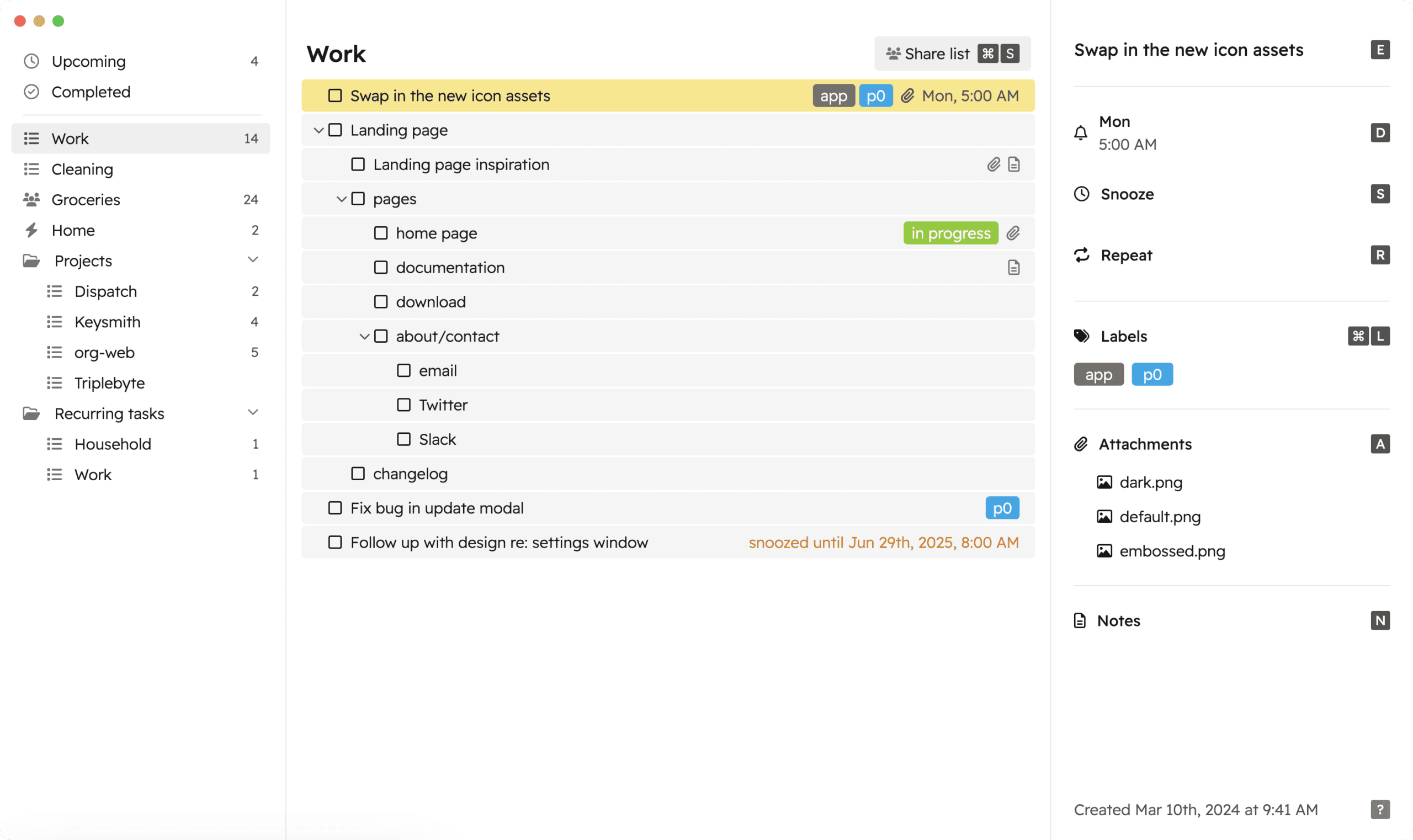
Your to-do list is full. You know you need to get things done, but opening your task app feels like an extra chore. Godspeed is a to-do manager that works differently: fully operated with your keyboard, lightning-fast and without hassle. Developed for people who prefer typing over clicking.
Who is behind Godspeed?
Godspeed was launched in 2023 by Daniel de Haas through his company Otto Labs, LLC, based in Walnut Creek in the United States. De Haas is no stranger to the productivity world – he previously built Keysmith, a tool for automating workflows on Mac. With Godspeed he wanted to tackle a specific problem: existing task managers were too slow and too dependent on the mouse.
The original idea was clear: create a “Superhuman for to-do lists.” Superhuman is an email client known for its speed and keyboard control. De Haas wanted to apply that same philosophy to task management. Every interaction had to respond within 50 milliseconds. No waiting, no animations that slow things down, no forced mouse usage. The result is a tool focused on one thing: processing your tasks as quickly as possible.
Godspeed even has a “Hardcore Mode” that completely disables the mouse. That sounds extreme, but it illustrates the philosophy: if you really want to get to know the tool, you need to fully commit to the keyboard workflow. The tool has not raised external funding and remains a small, independent product. User numbers are not publicly disclosed, but the active community and regular updates suggest a loyal user base.
Who is Godspeed for?
Godspeed is built for power users, developers and people who prefer to keep their hands on the keyboard. If you regularly use keyboard shortcuts in other apps, if you feel frustration every time you have to reach for your mouse, then this is your tool. It’s also interesting for people who use Vim or Emacs – the philosophy is similar.
But this tool is not for everyone. If you prefer working with a mouse, if you find visual overviews like Kanban boards important, or if you’re an Android user, then you’re better off looking at alternatives. Godspeed is entirely about speed and keyboard control, and that means other functionality is sometimes secondary. The iOS app is also less powerful than the Mac version, so if you mainly work on your phone, this is probably not the best choice.
What can Godspeed do?
Godspeed is all about speed and efficiency. All functionality is available via keyboard shortcuts, and the tool responds almost immediately to every action. Here are the main capabilities:
- Full keyboard operation – Every function is accessible via keyboard shortcuts. You can add, edit, move, and complete tasks without ever touching your mouse. There’s even a Hardcore Mode that completely disables the mouse to force you to learn the keyboard shortcuts.
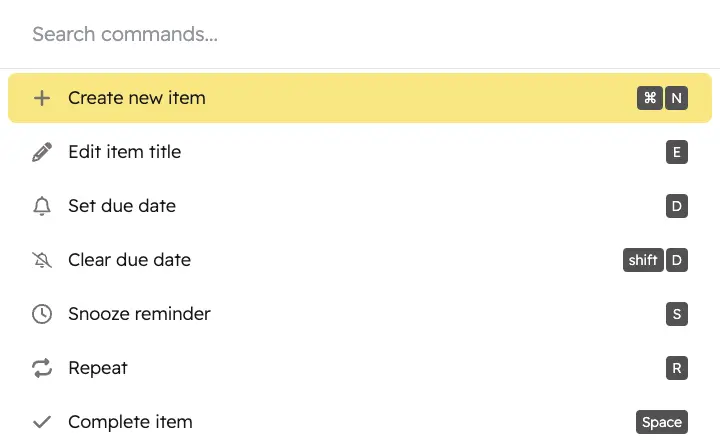
- Command Palette (Cmd+K) – Press Cmd+K and you’ll get a search window where you can perform any action. Want to move a task to another list? Just type the name. Want to adjust a date? Type the date in natural language. It works like Spotlight on Mac or the command palette in VS Code.
- Natural language for dates – Type “tomorrow”, “next Tuesday” or “in 3 days” and Godspeed understands it. You don’t need to open a date picker or click through a calendar. This also works in combination with creating tasks – you can create a task with a date and priority in one line.
- Task snoozing – Some tasks aren’t relevant right now but are important. You can snooze them until a specific date or time. The task disappears from your list and comes back when you need it. Useful for tasks that depend on external factors.
- Shared lists – You can share lists with others, for example for household tasks or projects. Changes sync in real-time. The collaboration is basic – no extensive permissions or comment sections – but it works well for simple shared to-do lists.
- Offline support – Godspeed works completely offline. You can add, edit, and complete tasks without an internet connection. Once you’re back online, everything syncs automatically. This makes the tool reliable, even on airplanes or areas with poor connection.
- Smart lists – Create dynamic lists based on filters. For example: all high priority tasks that expire this week. Or all tasks without a date. These lists update automatically when tasks change. You can use them as different “views” on your tasks.
- Markdown notes – Each task can contain a note with Markdown formatting. Links, lists, code blocks – it all works. The notes are searchable via the command palette. Useful for tasks that need context or reference material.
The tool deliberately lacks certain features. There is no Kanban board, no calendar view, no time tracking. The philosophy is that these features slow you down. If you need them, there are better tools for you.
What does Godspeed cost?
Godspeed does not have a free version. You can try the tool free for 14 days with full functionality. After that you pay $ 6 per month or $ 48 per year (which comes down to $ 4 per month). There are no different subscriptions – everyone gets the same features.
The price is on the high side for a task manager. Things 3 costs a one-time $ 50 for all platforms. Todoist has a free version that is sufficient for many people. The developers of Godspeed justify the price by pointing to the ongoing costs for development and synchronization. A subscription ensures that the tool keeps working and updating.
There is one exception: if you have a Setapp subscription, Godspeed is included. Setapp is a service that provides access to hundreds of Mac apps for a monthly fee. If you already use multiple apps through Setapp, you get Godspeed for free. That makes it considerably more attractive.
What should you watch out for?
The price is a barrier for many people. $ 6 per month is not extreme, but for a task manager it is at the top of the market. Especially if you are used to free alternatives like Todoist or Microsoft To Do. You really need to be convinced of the benefits of keyboard control to justify this price.
Godspeed only works well within the Apple ecosystem. There are no native apps for Android or Windows. The web version technically works on all platforms, but it is clear that the tool is designed for Mac users. If you switch between different operating systems, it becomes difficult.
The iOS app is less powerful than the Mac version. Logical – keyboard control simply works better on a computer than on a phone. But it does mean that your mobile experience is different. Some shortcuts don’t work, and certain workflows are slower. If you work a lot on the go, that can be frustrating.
The tool lacks visual displays. No Kanban board, no calendar overview, no Gantt charts. For some people that is a dealbreaker. If you like to see your tasks in a timeline or want to organize work visually, then Godspeed doesn’t offer what you’re looking for. The focus on lists and text is intentional, but it’s not for everyone.
There is a learning curve for the shortcuts. The first few days you will probably feel slower than with a mouse. You need to memorize the most important shortcuts before the tool really proves its value. Some users also complain that the right mouse button doesn’t work everywhere as expected, which can be confusing if you occasionally reach for the mouse anyway.
Godspeed alternatives
There are plenty of other task managers, each with their own focus. Here are the main alternatives:
- Things 3 – Choose this if you want a beautifully designed app that feels native on Apple devices. Things doesn’t have a subscription but a one-time purchase. It’s less focused on speed and keyboard control, but more intuitive for most people.
- Todoist – Choose this if you work on multiple platforms or collaborate with people who don’t have Apple devices. Todoist has more integrations, a free version, and apps for every operating system. However, it’s slower and less optimized for keyboard use.
- OmniFocus – Choose this if you manage very complex projects with many dependencies and contexts. OmniFocus is more powerful but also more complex and slower. It’s the heavyweight in the task world, while Godspeed pursues minimalism.
Frequently asked questions
Here are answers to the most frequently asked questions about Godspeed:
Is there a free version?
No, Godspeed does not have a permanent free version. You can try the tool for free for 14 days with full functionality. After that, you need to purchase a subscription to continue. If you have Setapp, Godspeed is included in that subscription.
Is there a Windows or Android app?
There are no native apps for Windows or Android. The web version does work on these platforms, but the experience is optimized for Mac and iOS. If you primarily work on Windows or Android, there are probably better alternatives for you.
Why is there no lifetime deal?
The developers indicate that a subscription is more sustainable for the long term. The ongoing costs for development, synchronization, and support are better covered with a subscription than with a one-time payment. They want to keep improving the tool without being dependent on new customers.
Conclusion
Godspeed is a niche tool with a clear philosophy: speed above all, keyboard over mouse. If you recognize yourself in that philosophy, if you feel frustration with slow apps and endless clicking, then this is probably the fastest task manager you will ever use. The price is high, but for the right user it is worth every penny.
But it’s not for everyone. If you need visual overviews, if you work on multiple platforms, or if you simply prefer using a mouse, then there are better options. Try the 14-day trial to see if the workflow suits you. If after a week you notice that you work faster and are less frustrated, then you have your answer.