
Your team is growing, projects are piling up, and suddenly you have five different apps open to keep track of everything that’s going on. Slack for communication, Trello for tasks, Google Docs for documentation, and oh yeah – where were we keeping the time tracking again? ClickUp promises to replace all that chaos with one platform. Sounds great. But does it actually work? I used ClickUp intensively for three months and can tell you exactly where it’s brilliant and where you run into issues.
Clickup: the company
ClickUp was founded in 2017 by Zeb Evans, who became frustrated with constantly switching back and forth between different productivity tools. His idea was simple but ambitious: why not put everything in one platform? Task management, documents, chat, time tracking, whiteboards – the whole shebang.
The company grew rapidly and now has millions of users worldwide. They’re based in San Diego and have an interesting philosophy: they want to increase your productivity by 20% by eliminating all those app switches. Does it work? That depends on whether you can handle the complexity.
What sets ClickUp apart is that all-in-one approach. Where other tools focus on one thing (Asana does task management, Notion does documentation), ClickUp literally tries to be everything. That makes it powerful. But also overwhelming.
Who is Clickup really for?
ClickUp is built for teams that want to experiment and fully customize their workflow. Think of marketing agencies that want projects, content calendars, and client communication in one system. Or software teams that manage sprints, bugs, and documentation in the same place.
It works well for people who aren’t afraid to tinker. That first week you’ll be customizing. Adjusting views, adding custom fields, setting up automations. If that energizes you – perfect. If you just want to get started without hassle? Then it gets difficult.
Who is it less suitable for? Small teams that want something simple quickly. A freelancer who only needs basic task management. People who don’t feel like dealing with a learning curve. And honestly: older team members who are used to simple tools can be quite shocked by this.
Also important: if your team is already struggling with complex software, don’t add another complex system. ClickUp requires discipline and a real implementation. Not a “let’s just try it” – you have to dive in.
Features of Clickup
Let’s be honest: ClickUp has so many features that you get lost at first. But here are the things that really make a difference:
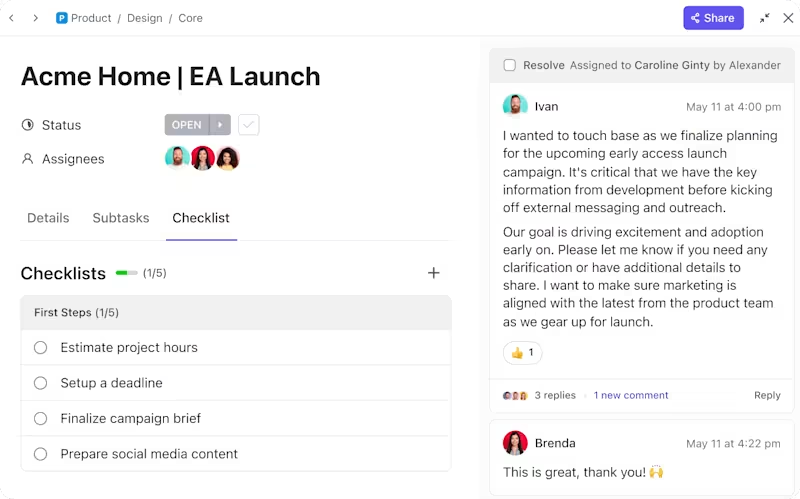
- Task Management & Subtasks – The heart of ClickUp. You create tasks, add subtasks (up to five levels deep), link them together with dependencies. Useful for complex projects where everything depends on each other. You can set priorities per task, add tags, and use custom fields for specific data that matters to you.
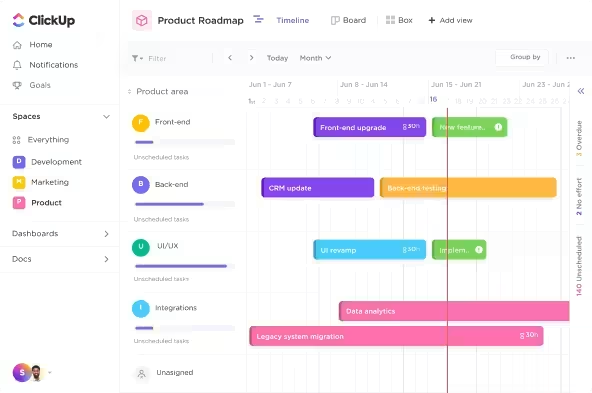
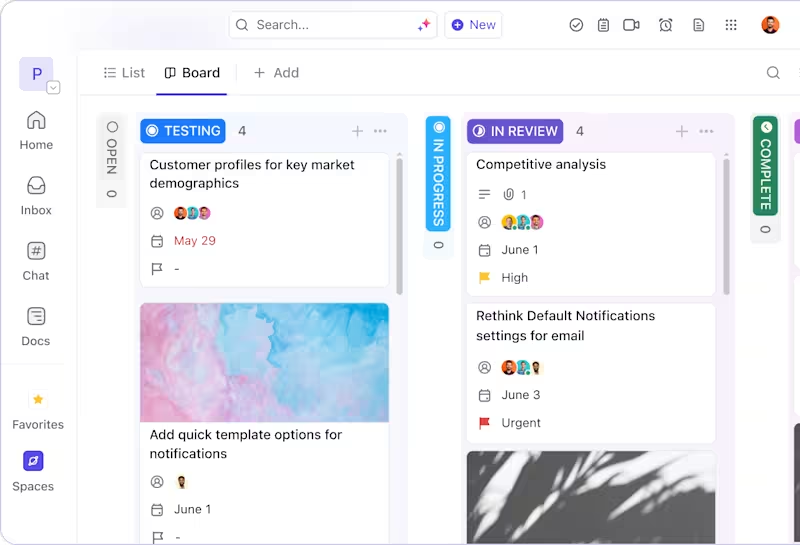
- Multiple Views – This is where ClickUp shines. You can view the same data as a list, board (Kanban), calendar, Gantt chart, timeline, or even as a mind map. Your project manager wants a Gantt? Fine. Your designer prefers working with a visual board? That works too. Everyone looks at the same data, but in their own way.
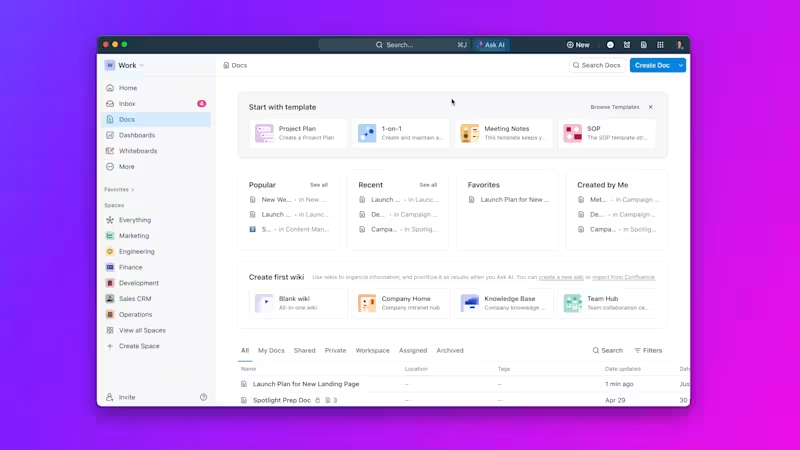
- Documents & Wikis – Built-in editor that is comparable to Notion. You create docs, link them to tasks, and build a complete knowledge base with it. Real-time collaboration works smoothly. You can nest pages, create templates, and even incorporate tables with data.
- Whiteboards – For brainstorming sessions and visual thinking. You draw, stick sticky notes, and can create tasks directly from the whiteboard. Works surprisingly well for remote teams that want to work out ideas together.
- Time Tracking – Built-in. Start a timer, link it to a task, and you automatically have insight into where your time is going. For billable hours, this is worth its weight in gold. You can also manually add time if you forgot to start the timer.
- Automations – When a task moves to “Done”, automatically send a notification. Or change the status of subtasks. Or assign a new task to someone. You build these automations with a visual builder. The free plan gives you 100 uses per month, after that you need a paid plan.
- Dashboards – Here you see the big picture. Progress of projects, workload of team members, burndown charts for sprints. You drag widgets to your dashboard and build your own command center. Ideal for managers who want an overview without diving into individual tasks.
- Real-time Chat – Yes, there’s also chat included. Per task, per project, or just teamwide. This means you can theoretically replace Slack. In practice, many teams don’t do that, because the chat feature is still just a bit less comprehensive.
What strikes me is how deeply you can customize. Custom fields for example: you add fields for budget, client code, urgency – whatever you want. Then you can filter and sort on them. For teams with specific workflows, that’s fantastic. But it does require you to think carefully about your setup.
The Goals feature also deserves a mention. You set goals (for example: “10 new clients this month”), link tasks to them, and ClickUp automatically shows progress. It keeps your team focused on what really matters, not just on checking off little tasks.
Clickup pricing
ClickUp has a generous free plan – the Free Forever plan. No time limit, just free. You get 100MB storage, 5 spaces, and limited use of advanced features like Gantt charts and custom fields (100 uses). For small teams or freelancers just starting out, this is honestly quite usable.
Want more? Then you have two main options. The Unlimited plan costs $ 7 per month per user with annual billing (total $ 84 per year), or $ 10 per month if you pay monthly. This gets you unlimited storage, unlimited integrations, Gantt charts, custom fields without limit, and more.
The Business plan costs $ 12 per month per user with annual billing ($ 144 per year), or $ 19 per month. This is for larger teams that need advanced features: workload management, timelines, private docs, and significantly more automations. You also get 2FA and advanced permissions here.
There’s also an Enterprise plan, but you need to contact them for pricing. That’s for organizations with 100+ users who want white-label options and dedicated support.
Is it worth it? Compared to competitors like Monday.com (from $ 8 per user per month) or Asana (from $ 10.99 per user per month), ClickUp is competitively priced. Especially that free plan is a steal – many competitors quickly force you into a paid plan.
But watch out: that $ 7 per month adds up as your team grows. With 10 people you’re already spending $ 70 per month, or $ 840 per year. For Dutch companies, that price tag in dollars sometimes feels uncomfortable – exchange rates can fluctuate.
Good news: there’s a 14-day trial for the paid plans. Enough time to test whether those extra features make a difference for your workflow.
What should you watch out for?
Okay, time for the honest side. Because ClickUp isn’t perfect.
The learning curve is steep. Really steep. Your first week you’re mostly figuring out where everything is and how to set things up. New team members often look overwhelmed at the screen – there are so many buttons, menus and options that you don’t know where to start. This isn’t a tool you implement “quickly.”
Then the speed. ClickUp can be slow, especially with large projects with many tasks. You click on a view and have to wait a moment. You open a task and there’s a half-second delay. Sounds small, but after a day of work it gets irritating. Users with hundreds of tasks per project regularly complain about lag.
The mobile app is another pain point. It works, but feels like a stripped-down version of the desktop experience. Many advanced features are difficult to use on a small screen. For quickly checking a task it’s fine, but really productive work? Do that on your laptop.
Bugs after updates are also a recurring theme. ClickUp regularly rolls out new features (which is good in itself), but sometimes things break in the process. Notifications that don’t work, automations that get stuck, views that won’t load. Usually it gets fixed quickly, but it does break your workflow.
And then that overwhelming interface. Everything is possible, but because of that you can’t see the forest for the trees. Want to do something simple? Then you first have to navigate through three menus. For people who love minimalism, this is a nightmare.
One more thing: the chat feature is okay, but not great. If you’re used to Slack or Teams, ClickUp’s chat feels basic. No threads, limited emojis, less intuitive. That’s why many teams still use a separate chat app, which undermines the “all-in-one” idea.
Privacy is also a point of concern for some users. By default, team members can see a lot from each other. You have to actively set permissions to keep things private. For teams working with sensitive customer data, this requires extra attention.
What do others think?
The general sentiment about ClickUp is mixed positive. People who dive in and take the time to learn it are often enthusiastic. They especially appreciate that it replaces multiple tools and the enormous customizability.
Frequently heard compliments: “Best free version on the market”, “Finally everything in one place”, “Visually attractive and modern”. Users love the different views and the ability to completely customize workflows to their liking. For teams that love customizing, it’s a paradise.
But the complaints are also consistent. Slowness keeps coming back, especially from users with large workspaces. The mobile app is often described as disappointing. And beginners regularly feel lost in all the options.
YouTube reviewers are cautiously positive. Tool Finder praised the versatility and new AI features in version 3.0, but warned about the complex interface. Knowledge By Marcus was enthusiastic about the templates and features, but had concerns about privacy settings and performance issues.
Notable: people who switch from simpler tools (like Trello) often find ClickUp too much. People who switch from multiple tools (for example Asana + Notion + Slack) are actually happy with the consolidation.
Clickup alternatives
Doesn’t ClickUp quite fit your team? These alternatives are worth considering:
- Monday.com – More visual and easier to use than ClickUp. The interface is more colorful and more intuitive. Choose this if your team wants to get started quickly without a steep learning curve. Ideal for teams that don’t like complexity.
- Asana – Fewer features but more stable and clearer. Asana does one thing (project management) and does it well. Choose this if you’re looking for pure project management without the extra bells and whistles like whiteboards. Faster and more reliable in use.
- Notion – More flexible for documentation but less powerful for task management. Notion is fantastic for knowledge bases and wikis, but the task features are basic. Choose this if you’re primarily building a knowledge base or wiki with light task functionality. Perfect for content teams and documentation-driven work.
Frequently asked questions
Is the free version really free forever?
Yes, the Free Forever plan has no time limit. You can continue using it indefinitely. However, you’re limited to 100MB storage and a limit on advanced features – for example, you can only use custom fields 100 times. For small teams or solo use, that’s often enough, but growing teams quickly run into that limit.
Can I use ClickUp offline?
Yes, the desktop and mobile apps have an offline mode. You can view tasks and create new ones without an internet connection. As soon as you’re back online, everything syncs automatically. Handy for working on the train or in locations with poor wifi. Note: not all features work offline – complex dashboards and real-time collaboration require a connection.
What is the difference between Unlimited and Business?
Business is aimed at larger teams and offers more advanced features. You get workload management (see who’s overloaded), timelines for long-term planning, private docs for sensitive information, and more automations per month. There are also better permissions and 2FA for security. For teams under 10 people, Unlimited is usually enough. From 15-20 people, you’ll notice you start missing those Business features.
Conclusion
ClickUp is ambitious. Perhaps too ambitious. It tries to be everything – task management, documentation, chat, whiteboards, time tracking – and largely succeeds. If you have a team that’s willing to invest in the learning curve, you get a powerful platform that can replace multiple tools.
But it’s not a plug-and-play solution. Your first weeks you’re customizing, experimenting, and training your team. The interface overwhelms, the app can be slow, and bugs after updates are frustrating. This is not a tool for teams that want “just something simple”.
Choose ClickUp if you have a medium to large team (5-50 people) that manages complex projects and values customizability. If you’re a marketing agency that wants to centralize projects, content and client communication. If you’re a software team that wants sprints, bugs and documentation in one place.
Choose against ClickUp if you’re a small team that wants to get started quickly. If you value simplicity over features. If you’re already struggling with complex software – then ClickUp will only make it worse.
My personal experience? After three months, I’m glad I invested the time. I now have one system instead of four. But that first month was painful. And I still miss the speed of simpler tools. ClickUp is powerful, but you pay for that with complexity. Whether that trade-off is worth it depends on what you prioritize: power or simplicity.