Your inbox is overflowing. Every email seems to be a new task. And somewhere between those 47 unread messages is that one appointment you really can’t forget. Sound familiar? I used Google Tasks intensively for three months to see if this minimalist to-do app really is as convenient as everyone says.
Google Tasks: the company
Google Tasks is no newcomer. The tool has been around since 2008, but remained hidden in a corner of Gmail for years. Few people knew it was there. In 2018, it finally got its own app and a major refresh.
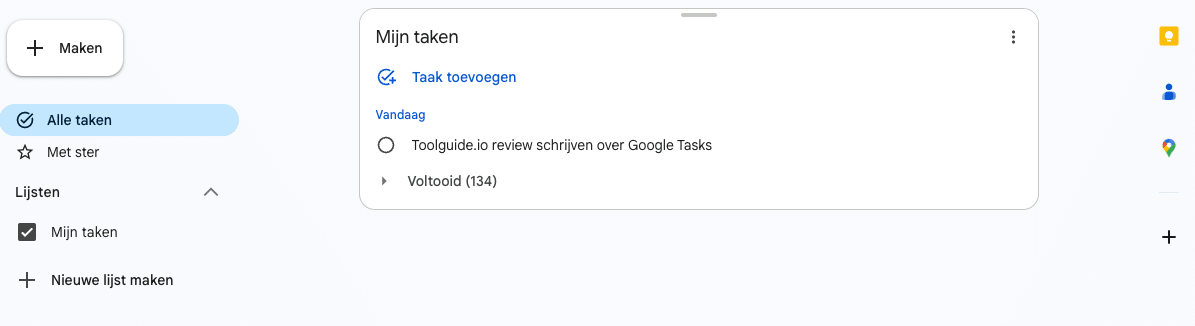
Google developed Tasks with one goal: manage tasks without hassle. No complicated features. No unnecessary options. Just write down your tasks and check them off. You can see that philosophy in every part of the app.
The beautiful part? It’s baked into the Google ecosystem. Do you use Gmail? Then Tasks is already there. Google Calendar? There too. That integration isn’t added as an afterthought, but is at the core of how Google has set up its productivity tools.
Who is Google Tasks actually for?
Let’s be honest: Google Tasks isn’t for everyone. Are you a project manager who needs to manage complex workflows? Then you’d better keep scrolling. Do you work in a team that needs to share and assign tasks? Then this isn’t your tool either.
But do you use Gmail as your digital brain? Do you constantly check your Google Calendar? Then it gets interesting. Google Tasks is made for people who already live in the Google ecosystem and don’t want to leave it.
Think of freelancers who want to turn their inbox into action items. Or students who want to link their assignments to their class schedule. Or just someone who wants a simple shopping list that’s available everywhere. No hassle with creating accounts or learning new apps. It just works.
The ideal user? Someone who loves minimalism. Who doesn’t want to think about labels, priorities, and complex filters. Who just wants to write down what needs to happen and when.
Google Tasks features
I’ve tried every corner of Google Tasks. These are the features you actually use:
- Gmail integration – This is the killer feature. See an email that requires action? Drag it to the Tasks sidebar. Done. The email becomes a task, including a link back to the original message. I use this daily for quote requests and feedback emails.
- Google Calendar synchronization – Give a task a date and time? Then it automatically appears in your calendar. The other way around works too: create an appointment in Calendar and add tasks to it. Everything stays synchronized without you having to do anything.
- Subtasks – Breaking down a large task into smaller steps. Sounds simple, but it works surprisingly well. “Website redesign” then becomes: create wireframes, write content, collect photos, test. You check off the subtasks and see your progress grow.
- Multiple lists – Create separate lists for work, personal, groceries, projects. You switch between lists with one tap. I have six: work urgent, work this week, personal, groceries, ideas and waiting on others.
- Recurring tasks – Daily, weekly, monthly, yearly. Or custom patterns like “every first Monday of the month”. Perfect for recurring things like sending invoices or watering plants.
- Details and notes – With each task you can add extra information. A link, a note, a reminder. It stays clear, but you have the space if you need it.
That Gmail integration deserves extra attention. I get emails daily that I can’t handle right away. I used to mark them as unread and forget them anyway. Now I drag them to Tasks with a date. My inbox stays empty, my tasks are lined up. It sounds simple, but it has really changed the way I work.
And that Calendar connection? It works both ways. Tasks with a deadline appear among your appointments. But you can also create action items directly from a meeting. “Meeting with client X” then gets subtasks like “prepare quote” and “collect examples”. Everything stays together.
Google Tasks pricing
Here’s where it gets interesting. Google Tasks is completely free. No hidden costs. No premium version. No “upgrade for more features”. You get everything there is, without paying.
That sounds too good to be true, right? The downside is that you also don’t get more than what’s there now. Want to collaborate with colleagues? Can’t do it. Advanced filters? Nope. Integrations with other apps? Forget it. Google gives you a free tool, but deliberately keeps it simple.
Compare that with Todoist, where you pay € 4 per month for labels and reminders. Or TickTick for € 2,50 per month for the Pomodoro timer and habit tracking. Google Tasks does less, but also costs nothing.
For whom is that free model ideal? For people who already have a Google Workspace account. They’re already paying for Gmail and Calendar anyway. Tasks is then a bonus. But also for anyone with a free Gmail account: you get a full-featured task list without spending a single cent.
What should you watch out for?
After three months of use, the limitations are clear. And they’re not small.
No collaboration. That’s the biggest frustration. You can’t share a list with your partner, colleague, or teammate. Working together on a project? Then everyone has to keep their own little list. Or you have to resort to Google Docs or Sheets, which undermines the whole purpose of a task app.
The notifications are weak. Especially on Android. They do appear, but don’t stand out. No sound by default. No persistent icon. I’ve missed a task multiple times because I overlooked the notification among all my other notifications.
No desktop app. You have to use it through the browser or via the sidebar in Gmail. Want to quickly check your tasks without opening your email? Tough luck. You first have to navigate to gmail.com or calendar.google.com. A standalone app would make this so much more convenient.
Tasks without a date disappear from view. They’re in your list, but don’t appear in your Calendar. Logical perhaps, but it means you have to actively dig through your lists to see what’s still open. With other apps, you always see an overview of everything.
No advanced sorting. You can’t filter tasks by priority or label. You can’t group them by project. The only organization is through lists and subtasks. For simple to-do’s that’s fine. For complex projects it falls short.
And here’s something that really bothers me: no folder structure for lists. I have six lists. That’s still manageable. But what if you get twenty? Then it becomes chaos. You can’t put lists in folders or categorize them. They’re just listed one after another.
What do others think?
Opinions about Google Tasks are divided. And that actually makes perfect sense.
People who are already deep in the Google ecosystem are enthusiastic. They appreciate the direct connection with Gmail. Dragging emails to tasks is constantly mentioned as a favorite. The visibility in the Calendar sidebar also gets a lot of praise. “Finally I see my tasks among my appointments” is a frequently heard response.
The minimalist design divides people. Some find it wonderfully calm. No distractions, no unnecessary buttons. Others find it too bare. Too simple. Too limited. “It feels like a half-finished product,” I read multiple times.
The biggest complaint? It keeps coming back: no ability to share. Teams can’t do anything with it. Families either. It remains a personal tool. That’s intentional, but for many people a dealbreaker.
On Android, notifications are a frequently heard problem. They’re too subtle. Too easy to miss. People forget tasks because they didn’t see the reminder. That’s a basic function that needs to be better.
But there’s also a lot of appreciation. The free price is enormously valued. No hidden costs, no premium pressure. And the reliability: it always works. No crashes, no bugs, no lost tasks. That’s not nothing.
Google Tasks alternatives
Too limited for your use? Then look at these options:
- Todoist – Much more extensive with labels, filters and collaboration options. Choose this if you need advanced task management features and project organization. It’s more powerful, but costs € 4 per month.
- Microsoft To Do – Better integration with Outlook and Windows. Choose this if you work primarily in the Microsoft ecosystem. Also free, but with more features than Google Tasks.
- TickTick – Contains extras like a Pomodoro timer and habit tracker. Choose this if you want to combine productivity tools and tasks in one app. For € 2,50 per month you get a complete productivity package.
Frequently asked questions
Can I share lists with others?
No, that’s the biggest limitation. Google Tasks doesn’t support directly sharing lists. You can assign tasks within Google Chat spaces or via Google Docs, but that’s cumbersome. For real collaboration, you need to look at another tool.
Is there a desktop app for Windows or Mac?
No, unfortunately not. There is no official desktop app. You use Google Tasks via the sidebar in Gmail or Calendar, or via the browser at tasks.google.com. For some people that’s fine, others find it annoying that they have to open their email first.
Does Google Tasks sync with Google Calendar?
Yes, and that works really well. Tasks with a date and time automatically appear in your Google Calendar. You see them among your appointments. The other way around, you can also create tasks from Calendar. The synchronization is instant, without delay.
Conclusion
Google Tasks is not a miracle solution. It’s not a powerful project management tool. It doesn’t have fancy features or AI assistants. And that’s exactly the point.
It’s a simple, reliable task list for people who already live in the Google ecosystem. Do you use Gmail daily? Do you constantly check your Google Calendar? Then Tasks feels like a natural extension. That email-to-task feature alone saves me time every day.
But do you work in a team? Do you want to share lists? Do you need advanced filters? Then you really need to look at something else. Google Tasks is deliberately kept limited. That’s perfect for some, frustrating for others.
After three months of use, I keep using it. Not because it’s perfect, but because it fits how I already work. My inbox is emptier. My tasks are linked to my calendar. And I don’t have to pay anything for it. That works for me. Maybe for you too.